
Sitemap (Table of Contents) is a page on your blog where all posts are arranged in accordance to their type, and it shows the links to all posts published on your blog so far. Sitemap (Table of Contents) is important for all bloggers to have on their blog. This make blog look professional, and it helps your blog visitors and readers to navigate through your blog post.
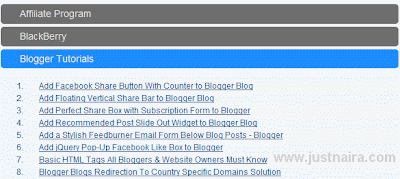
Here is a script that saves time and helps to update all new posts made on your blog to your sitemap (Table of Contents) page automatically. This script will display all posts made on your blog under their specified categories (Labels). This widget also comes with a CSS & Jquery to make it attractive.
Steps To Add Automatic Sitemap (Table of Contents) Generator
1. Add the CSS code below to your template. This can be done by going to Blogger >>> Template, use (CTRL+F) to search for ]]></b:skin> in your template and finally paste the CSS code below before ]]></b:skin> tag.
/*--------JustNaira TOC-----*/

.judul-label{

background-color:#E5ECF9;

font-weight:bold;

line-height:1.4em;

margin-bottom:5px;

overflow:hidden;

white-space:nowrap;

vertical-align: baseline;

margin: 0 2px;

outline: none;

cursor: pointer;

text-decoration: none;

font: 14px/100% Arial, Helvetica, sans-serif;

padding: .5em 2em .55em;

text-shadow: 0 1px 1px rgba(0,0,0,.3);

-webkit-border-radius: .5em;

-moz-border-radius: .5em;

border-radius: .5em;

-webkit-box-shadow: 0 1px 2px rgba(0,0,0,.2);

-moz-box-shadow: 1px 1px 4px #AAAAAA;

box-shadow: 0 1px 2px rgba(0,0,0,.2);

color: #e9e9e9;

border: 2px solid white !important;

background: #6e6e6e;

background: -webkit-gradient(linear, left top, left bottom, from(#888), to(#575757));

background: -moz-linear-gradient(top,  #888,  #575757);

filter:  progid:DXImageTransform.Microsoft.gradient(startColorstr='#888888', endColorstr='#575757');

}

.data-list{

line-height:1.5em;

margin-left:5px;

margin-right:5px;

padding-left:15px;

padding-right:5px;

white-space:nowrap;

text-align:left;

font-family:"Arial",sans-serif;

font-size:12px;

}

.list-ganjil{

background-color:#F6F6F6;

}

.headactive{

    color: #fef4e9;

    border: 2px solid white !important;

    background: #1C8DFF;

    background: -webkit-gradient(linear, left top, left bottom, from(#9dc2e7), to(#438cd2));

    background: -moz-linear-gradient(top,  #9dc2e7,  #438cd2);

    filter:  progid:DXImageTransform.Microsoft.gradient(startColorstr='#9dc2e7', endColorstr='#438cd2');

}
Save your Template after inserting the CSS
2. Create a Page: to create a new page, go to Blogger >>> Pages >>> New Page. Now give the page a title such as “Table of Contents” “Site Maps” or any title you wish. Click EDIT HTML button on the compose mode screen, now paste the code below in it.
<script src="http://olusegun-fapohunda-calculator.googlecode.com/svn/Justnaira-tos-file.js"></script>
<script src="http://www.justnaira.com/feeds/posts/summary?max-results=1000&alt=json-in-script&callback=loadtoc"></script>
<script type="text/javascript">
var accToc=true;
</script>
<script src="http://olusegun-fapohunda-calculator.googlecode.com/svn/concordian-tos.js" type="text/javascript"></script>Make sure you change http://www.justnaira.com to your own blog URL and then publish the page. Visit the page link to view your awesome blog sitemap (Table of Contents).
Sitemap (Table of Contents) Customization
The color of the category when in active mode is blue while when it is inactive it appears as dark gray.
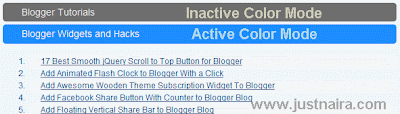
So to change the active mode, simply change #9dc2e7 and #438cd2. Here is a color generator tool that will aid you to select the best color code that you love.
If you encounter any difficulties in the process of setting up your blog Sitemap, don’t hesitate to use the comment box below.
